Subtitles vs Dubbing: Which to Choose, and When
- Published
- Reading time
- 10 min read
- Author
- By BEN-TK
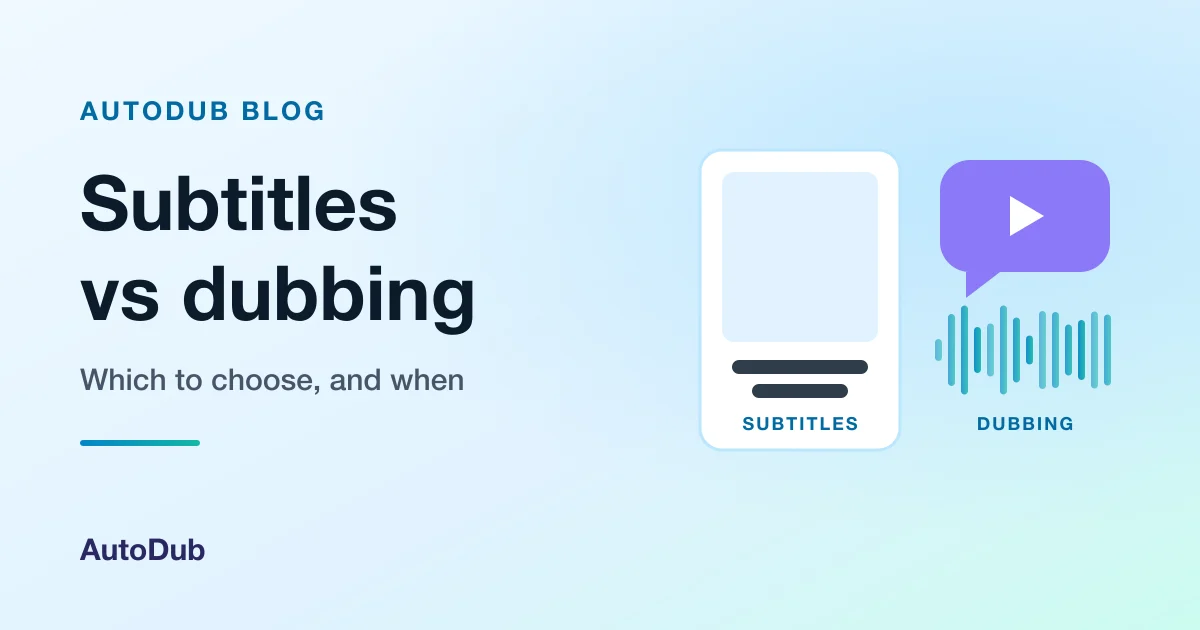
Table of contents
- When to choose subtitles, dubbing or both
- Subtitles vs dubbing compared
- What viewers prefer depends on where they live
- When to use both, and how AutoDub delivers both
- How to add translated subtitles to a YouTube video
- How to dub a video and get the subtitles too
- AutoDub specs and limits
- Frequently asked questions
- Related reading
Subtitles vs dubbing: which should you choose? Subtitles keep the original voice and add translated text on screen; dubbing replaces the speech with a new voice in the viewer's language. Choose subtitles when viewers want the original performance or watch with the sound off. Choose dubbing when they need their eyes on the picture, or simply prefer listening. Many creators publish both.
That is the whole decision in one paragraph. In fan shorthand, "sub" and "dub" mean exactly this: the subtitled version or the dubbed one. The rest of this guide explains the trade-offs behind the answer, shows what audiences in different countries say they prefer, and walks through the steps for each path, including the simplest way to publish a dub and subtitles together.
When to choose subtitles, dubbing or both
Use this as a quick checklist before you read the details:
- Choose subtitles when the original voice is part of the content (an interview, a performance, a film scene), when your audience mostly watches muted in a feed, or when your budget is close to zero.
- Choose dubbing when the viewer has to watch something while they listen: a software tutorial, a cooking video, a product demo, a lesson with slides. Reading a subtitle and following a cursor at the same time is hard work.
- Choose dubbing for young children and for anyone who reads slowly or cannot read the subtitle language well.
- Choose both when you publish to one audience on several platforms, or when you cannot tell whether your new viewers will watch with sound. A dub with optional subtitles covers listeners, readers and people who are deaf or hard of hearing.
Subtitles vs dubbing compared
The same video, translated two ways:
| Subtitles | Dubbing | |
|---|---|---|
| What the viewer gets | The original audio, with translated text at the bottom of the screen | Speech in their own language; with AI dubbing, often in a clone of the original speaker's voice |
| What the viewer has to do | Read while they watch | Listen while they watch |
| Original voice and acting | Kept exactly | Replaced; voice cloning keeps the sound of the speaker, not the original recording |
| Works with the sound off | Yes | No, unless subtitles are added too |
| Eyes free for the picture | No: reading competes with what happens on screen | Yes |
| Room for the words | Limited by line length and reading speed, so fast speech is shortened | The full sentence is spoken, fitted to the same moment |
| Cost to make | The lowest: a text file | Higher: a new voice track; AI tools usually charge per minute of video |
| Time to make | Minutes (automatic) to days (human translator) | Minutes with an AI tool, days to weeks in a studio |
| Accessibility | Helps deaf and hard-of-hearing viewers | Helps blind and low-vision viewers, children and slow readers |
Two rows in that table deserve a closer look: how much a subtitle can say, and what the research on comprehension does and does not show.
Why subtitles shorten what people say
Subtitles are read, and reading has a speed limit. Netflix's style guide for English subtitles allows "42 characters per line", "Maximum two lines" on screen at once, and a reading speed of "Up to 20 characters per second" for adult programs and "Up to 17 characters per second" for children's programs. Source: Netflix Partner Help Center, "English (USA) Timed Text Style Guide", checked November 4, 2026.
When someone talks faster than viewers can read, a professional subtitler condenses the line: the meaning stays, some words go. A dub has no reading-speed ceiling, but it has its own constraint: the translated sentence has to fit the time the speaker takes on screen, so it is shaped to length too.
What the research on comprehension says, and what it does not
The strongest research is about captions, meaning subtitles in the same language as the speech. Reviewing that research, psychologist Morton Ann Gernsbacher writes that "More than 100 empirical studies document that captioning a video improves comprehension of, attention to, and memory" for the video, with the benefits noted especially for people watching in a language that is not their first. Source: Gernsbacher, "Video Captions Benefit Everyone", Policy Insights from the Behavioral and Brain Sciences, 2015, checked November 4, 2026.
Be careful with how far that goes. The paper itself separates captions from foreign-language subtitles, so it does not show that translated subtitles beat a dub, or the other way round. What it does support is adding text to a video: if you dub, offering subtitles as well is a cheap way to help people who like to read along.
What viewers prefer depends on where they live
Habits matter as much as research. In a Morning Consult survey of adults in 15 countries, fielded March 3 to 8, 2022, "86% of Russian adults said they prefer to watch dubbed content over subtitled content", a view the article says was shared by the majority of respondents in Germany, Italy, Spain and France. In Asia the picture flipped: "Roughly 7 in 10 consumers in China and South Korea said they preferred subtitles." U.S. audiences were split, with "a slight preference for subtitles (43%) over dubbing (36%)." Source: Morning Consult, "The International Content Boom Has Made Subtitlers and Dubbers the Lifeblood of Streaming", April 25, 2022, checked November 4, 2026.
That survey asked about films and series on streaming services, not tutorials or vlogs, so treat it as a sign of habit rather than a rule for your channel. It does suggest a practical starting point: a dub is a strong default for German, Italian, Spanish or French viewers, while Korean or Chinese viewers may be just as happy with good subtitles. The pair guides for English to German, English to Italian and English to Korean cover what to watch for in each language, and the video translation hub lists every pair.
When to use both, and how AutoDub delivers both
You rarely have to pick one. Every AutoDub dub comes with subtitles in the new language as SRT and VTT files, so one job gives you the dubbed MP4 and the text to go with it. On the free trial you can read the subtitles in the player; downloading the video and the subtitle files comes with a plan or a one-video unlock (see the AutoDub pricing page).
Both file types work on the main platforms. YouTube lists SubRip (.srt) and WebVTT (.vtt) among its supported caption formats. Source: YouTube Help, "Supported subtitle and closed caption files", checked November 4, 2026. Because SRT and VTT are plain text files, you can also correct a name or a term in any text editor before you upload them.
On YouTube there are two common setups. You can upload the dubbed MP4 as its own video, with the lip-sync intact, and add the translated subtitles as its caption track. Or, if your channel has YouTube's multi-language audio feature, you can add the dub's audio to the original video as an extra track and the subtitles as an extra caption language; viewers then see your original picture, without the lip-sync. Our guide to YouTube multi-language audio tracks walks through the second option. On TikTok, Instagram or your own site, where a video has one soundtrack, publish the dubbed MP4 and add the subtitles where the platform allows.
How to add translated subtitles to a YouTube video
If subtitles alone are enough for you, YouTube has the tools built in.
1. Get a transcript in the original language
YouTube can create automatic captions with speech recognition. They will be in the video's default language only, and YouTube warns that they "might misrepresent the spoken content due to mispronunciations, accents, dialects, or background noise", so read them through. Sources: YouTube Help, "Use automatic captioning" and "Add subtitles & captions" (the default-language rule), checked November 4, 2026.
2. Translate it
Translate the corrected transcript yourself, with a translator, or with a translation tool, and keep each line short enough to read (see the line limits above).
3. Upload the file in YouTube Studio
According to YouTube Help, you open Subtitles in YouTube Studio, select the video, click Add language, choose the language, click Add under Subtitles, then Upload file, pick "With timing" for an SRT or VTT file, and save. Source: YouTube Help, "Add subtitles & captions", checked November 4, 2026.
Viewers can also translate captions themselves. On YouTube's caption settings page, the steps are: if the language is not listed under Subtitles/CC, "Click Auto-translate", then "Select a language". Source: YouTube Help, "Manage caption settings", checked November 4, 2026. That costs you nothing, but it is a machine translation you never checked, read off a transcript that may already contain errors.
How to dub a video and get the subtitles too
To give viewers speech in their language, with subtitles as a bonus:
- Upload an MP4, MOV, M4V or WebM file (up to 2 GB and 30 minutes), or paste a YouTube, TikTok or Instagram link. AutoDub recognises the spoken language automatically and transcribes it, so the video does not need captions first.
- Pick the target language. Each dub is one language; on a paid plan you can pick up to five languages in one submission, and each becomes its own dub.
- Watch the dub in your dashboard, with the subtitles on, and check names, numbers and key terms with someone who speaks the language. AutoDub has no script editor: you can correct the subtitle file yourself, but a word the voice gets wrong is fixed only at the source, for example by saying it more clearly.
- Download the dubbed MP4 and the SRT and VTT files with a plan or a one-video unlock, then publish them where your audience watches.
The AI video dubbing page shows what a finished dub includes, the AI video translator page covers the languages you can translate into, and the free trial lets you test it on your first video, up to 2 minutes long, before you pay anything.
AutoDub specs and limits
What AutoDub accepts, what it returns, and what it does not do yet.
| Input | A MP4, MOV, M4V or WebM file up to 2 GB, or a public YouTube, TikTok or Instagram link |
|---|---|
| Video length | Up to 30 minutes per video, on every plan |
| Languages | 70+ target languages; the language spoken in the video is recognised automatically |
| Output | An MP4 in the speaker's cloned voice, lip-synced, plus SRT and VTT subtitles in the new language |
| Turnaround | Most videos are ready in 5–15 minutes |
| Free trial | One video, up to 2 minutes, watched free in your dashboard; a verified e-mail address, no card |
| Downloads | With a plan, or a one-time unlock from $4.99 |
| Price | Monthly plans from $39; yearly plans 20% off; subscribers can top up with minute packs from $25 |
| Storage | Your videos and dubs stay in your account until you delete them |
What AutoDub does not do yet
- No script editor. You cannot edit the transcript or the translation of a dub, so watch every dub before you publish it.
- No public API. Every dub is started in the web app; there is no API for teams yet.
- One language per dub. Each dub has one target language and is billed as its own dub. Paid plans can pick several languages in one submission; the free trial is one video in one language.
- 30 minutes and 2 GB per video. A longer or larger video has to be split into parts before you upload it.
- Subtitles only in the new language. The SRT and VTT files are in the dubbed language; there is no subtitle file in the original language.
- Links from three sites. AutoDub fetches YouTube, TikTok and Instagram links; a video from anywhere else has to be uploaded as a file.
- No accent or dialect setting. You pick a language, such as Spanish, not a regional variety of it.
- No automatic deletion. Nothing is removed for you: your videos and dubs stay in your account until you delete them in your dashboard.
- Downloads need a plan or an unlock. A free trial dub can be watched, not downloaded: the video and its subtitles download with a plan or a one-time unlock from $4.99.
Last verified
Frequently asked questions
Neither is better in general; each is better for a job. Dubbing wins when viewers need to watch the picture while they follow the words, as in tutorials and demos, and for children and slow readers. Subtitles win when the original voice matters, when people watch muted, and when the budget is tiny. Audience habit counts too: in the 2022 Morning Consult survey quoted above, most respondents in Germany, Italy, Spain and France preferred dubbing, while about seven in ten in China and South Korea preferred subtitles.
Both start from the same two steps, a transcript of the speech and a translation, so they are only as accurate as those. The difference comes after. Subtitles are often shortened to fit reading speed, so some detail is dropped on purpose; a dub speaks the full sentence but has to fit the speaker's timing, and an AI voice can mispronounce a name. Whichever you choose, check names, numbers and technical terms with a native speaker before you publish.
Yes, in two ways. You can add translated subtitles, which keeps the original audio and puts the translation on screen; on YouTube you upload the translated SRT or VTT file as a new caption language. Or you can dub the video and keep subtitles as an extra. A video does not need existing subtitles to be dubbed: AutoDub transcribes the speech itself and returns the dub with SRT and VTT subtitles in the new language.
As a viewer, open the Subtitles/CC setting in the player; if your language is not listed, choose Auto-translate and select a language. As a creator, translate the subtitle file and upload it in YouTube Studio under Subtitles: add the language, choose Upload file, pick With timing, and save. A translated file you checked yourself is more reliable than auto-translate, which translates the automatic captions without anyone reviewing them.
If you can, use both. YouTube lets you add caption tracks in other languages, so a dubbed video with subtitles serves people who want to listen and people who read or watch muted. If you can only do one, dub talking-head tutorials and explainers, and subtitle interviews and content where the original voice is the point. Check YouTube's own automatic dubbing first if your videos are in English; our explainer on YouTube auto dubbing covers which languages it offers.
Related reading
- What AI dubbing is and how it works
- How to dub a video with AI, step by step
- What AI dubbing costs per minute
- Is AI dubbing safe? Your video, voice and data
- Is AI dubbing legal? Copyright, consent and platform rules
- AutoDub vs HeyGen
Get the dub and the subtitles from one upload
Your first video, up to 2 minutes, is free to try. Watch the dub with its subtitles in your dashboard before you decide.
Written by BEN-TK
Keep reading
Related articles
 Guide · 8 min read
AI Dubbing Cost per Minute: What You Pay and Why
What one minute of AI dubbing costs, where the money goes (compute, voice cloning, lip-sync), AutoDub's price per minute on each plan, and what a studio or subtitles cost instead.
Read article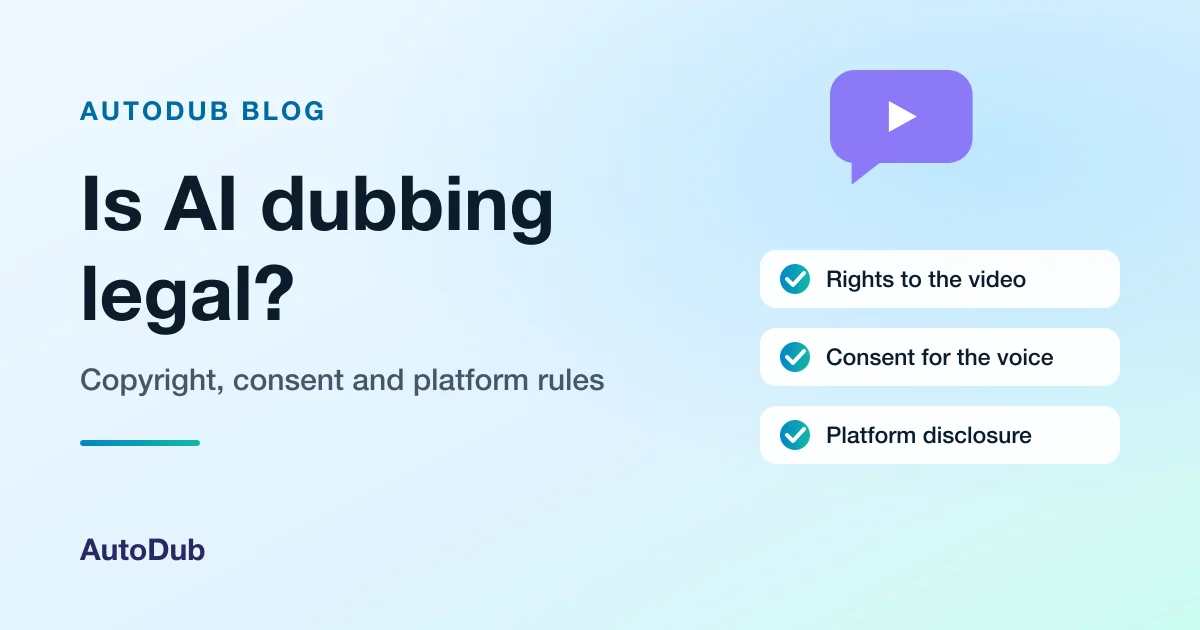 Guide · 10 min read
Is AI Dubbing Legal? Copyright, Consent and Rules
AI dubbing is legal as a tool; what decides a dub is the video and the voice. Copyright, voice consent, YouTube and TikTok disclosure, monetisation, and a checklist before you publish.
Read article Guide · 10 min read
YouTube Auto Dubbing Explained: On, Off and Limits
YouTube's automatic dubbing, from YouTube Help: what it does, the 30 languages it starts from, why a video is not dubbed, how to switch it off as a creator or a viewer, and when your own dub is the better choice.
Read article