YouTube Multi-Language Audio: Add a Dubbed Track
- Published
- Reading time
- 10 min read
- Author
- By BEN-TK
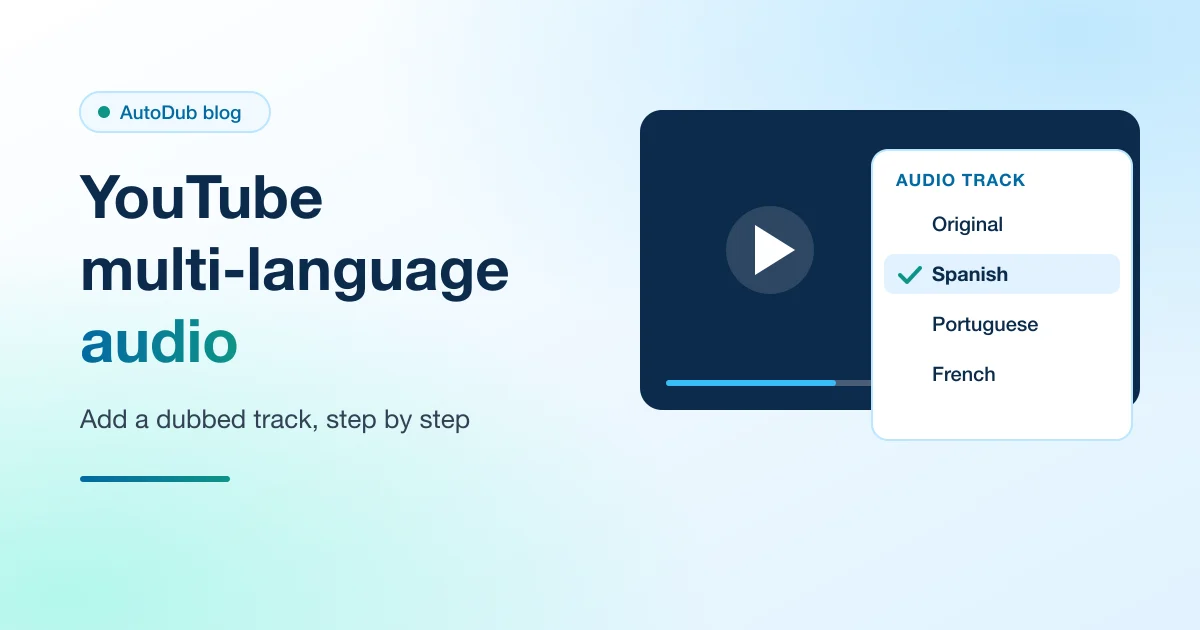
Table of contents
- What multi-language audio is, and what it is not
- Who can add audio tracks
- How to add a dubbed audio track on YouTube
- One channel with audio tracks, or a second channel?
- How to make the dubbed track with AutoDub
- Try it on one video first
- AutoDub specs and limits
- YouTube multi-language audio: frequently asked questions
YouTube multi language audio, which YouTube Help calls "Multi-language audio", lets a creator upload extra audio tracks in other languages to a single video or Short. Viewers hear the track that matches their preferred language and can switch tracks in the player. You supply the dubbed audio yourself: YouTube does not create these tracks for you.
That is the short answer. This guide covers who can use the feature, the exact steps in YouTube Studio, the question creators argue about (one channel with audio tracks or a second channel in the new language), and how to make the dubbed track itself, including how to turn a dubbed MP4 into the audio-only file YouTube asks for.
The YouTube facts below come from two YouTube Help pages, both checked on November 4, 2026: Add Multi-language features to your videos and Learn about feature access for YouTube Creators. YouTube changes its creator tools often, so check those pages before you rely on a detail.
What multi-language audio is, and what it is not
A dubbed audio track is not a new upload. It sits on your existing video next to the original sound, for new and previously uploaded videos alike. YouTube Help says the tracks "automatically default to the viewer's preferred language, which is determined by their watch history", and viewers can switch languages in the player settings. Translated titles and descriptions also count: YouTube says your videos "can be found when viewers search using a translated video title and description."
It is also not automatic dubbing. YouTube's auto dubbing feature makes AI tracks on its own for eligible channels. Multi-language audio is the upload route: in YouTube's words, "You must record your dubbed audio tracks before uploading them." YouTube suggests you "outsource your dubbing needs to a vendor or record yourself speaking in another language", and an AI dubbing tool is one way to be your own vendor.
Source: YouTube Help, "Add Multi-language features to your videos", checked November 4, 2026.
Who can add audio tracks
YouTube Help says multi-language audio "is currently available to creators with access to Advanced features." Advanced features are YouTube's top tier of channel features; "Multi-language features" sits on that list beside chapters, pinned comments and the right to apply for monetization. There are two ways in:
- Channel history. YouTube says channels that have "already established sufficient channel history" will "likely automatically qualify for advanced features."
- ID or video verification. You can "verify your identity using a valid ID or video" to get the features straight away, though YouTube notes that "ID and video verification isn't available to all creators."
Verifying a phone number unlocks only the intermediate tier. To keep advanced access, YouTube says a channel must keep following the Community Guidelines and "maintain a positive channel history."
Source: YouTube Help, "Learn about feature access for YouTube Creators", checked November 4, 2026.
How to add a dubbed audio track on YouTube
You add tracks in YouTube Studio on a computer. Open YouTube Studio and sign in, then follow YouTube's steps:
- In the left menu, select Languages.
- Click the video you want to edit.
- Click Add Language and select the language of your dub.
- Next to "Dub", click Add.
- Click Select file.
- Choose the file. YouTube says files "must be in a supported audio-only file format and roughly the same length as your video."
- Click Publish when you are ready.
Three rules sit around those steps. If YouTube already made an automatic dub in that language, "you first have to delete the auto dub in that language before you can upload your own dub." To replace a track, go to the same Languages page and click Delete under "Audio" for that language, then upload again. And YouTube warns that "If we detect that the copyrighted content in the secondary audio track is different from the original audio, the file may be removed", so the dubbed track should carry the same music and sound effects as the original.
While you are on the Languages page, add a translated title and description for the same language, and for long-form videos a thumbnail in that language: YouTube says viewers "will be shown thumbnails that match their language setting."
Source: YouTube Help, "Add Multi-language features to your videos", checked November 4, 2026.
One channel with audio tracks, or a second channel?
This is the question creators argue about most, and both camps have a point. YouTube's own case for tracks is that they let you "post content to one channel with all audio tracks attached to a single video", which it says simplifies maintenance and analytics. The case for a second channel is control: the new-language channel is a full channel of its own. Here are the trade-offs side by side.
| Audio tracks on one channel | A second channel in the new language | |
|---|---|---|
| Who can do it | Channels with access to Advanced features | Any channel |
| What viewers see | Your original picture with the dubbed voice; a lip-synced picture does not carry over | The dubbed video exactly as you upload it, lip-sync included |
| Upload work per video | One extra audio file, plus a translated title and description | A full second upload with its own title, description and thumbnail |
| Subscribers and history | One audience; new viewers land on your main channel | Starts from zero subscribers |
| Comments and community | Every language in one comment section | A separate community you can answer in its language |
| Analytics | Views and watch time broken down by audio language in one channel | Separate numbers per channel |
| Edits | One cut for every language; edits to the original audio carry over to the tracks | Each market can get its own cut and thumbnail |
What YouTube reports: creators who uploaded multi-language audio tracks "saw over 25% of their watch time come from views in the video's non-primary language" (YouTube Help, "Add Multi-language features to your videos", checked November 4, 2026). That is YouTube's average for creators who use the feature, not a forecast for your channel.
The best-known switch went from channels to tracks. Tubefilter reported on February 23, 2023 that MrBeast had for years "uploaded dubbed-over versions of his main channel's English-language videos to nearly a dozen side channels", and quoted him on the tracks: "It's added a lot of views per video for us." YouTube's announcement the same day said MrBeast had "already dubbed his most popular videos in 11 languages" and hoped to bring more international viewers to his main channel through multi-language audio. (Sources: Tubefilter and the YouTube Official Blog, both checked November 4, 2026.)
Our honest read: if you have Advanced features and want one audience, audio tracks are less work and keep every view on one video. A second channel makes sense when the lip-synced picture matters to you, when you want to talk to that audience in its own language in comments and community posts, or when your channel does not have Advanced features yet. Whichever you pick, YouTube's own best practice is to "focus your efforts on one or two languages, and strive to dub as much content as you can for them."
How to make the dubbed track with AutoDub
AutoDub translates the speech in your video into another language in a cloned version of your voice and returns a lip-synced MP4 with subtitles in the new language (SRT and VTT). Here is how to turn that into a YouTube audio track:
- Dub the video. Upload the file or paste the link of your public YouTube video, up to 30 minutes long, and pick the language. Each dub is one language; on a paid plan you can pick up to five languages in one submission, each made as its own dub. See the English to Portuguese, English to French and English to Arabic pages for what each direction involves.
- Watch the whole dub. There is no script editor, so check names, numbers and product terms before the track goes live.
- Download the MP4. Downloading comes with a plan or a one-video unlock; the pricing page has the numbers.
- Extract the audio. YouTube wants an audio-only file, so take the sound out of the MP4. Two free tools do it (next section).
- Upload the track in YouTube Studio with the steps above, then add the translated title and description. You can also upload the dub's subtitle file, since YouTube Help says "You can also add your own captions to your video."
Keep in mind what the track route gives up: the audio plays over your original picture, so the lip-sync in the dubbed MP4 is not seen on YouTube. If you want viewers to see it, publish the MP4 as its own video, which is the second-channel route. For the dubbing process itself, from voice to lip-sync, see AI video dubbing in your own voice and the AI lip sync dubbing page.
How to extract the audio from the MP4
YouTube's Help page does not list which audio formats it accepts (checked November 4, 2026). The steps below produce a WAV, a plain audio-only file; if YouTube Studio refuses it, export an MP3 instead.
With FFmpeg (free, command line). FFmpeg's documentation calls the tool a "universal media converter" and says the -vn option "disables video recording"; its legal page says FFmpeg is licensed under the GNU Lesser General Public License (version 2.1 or later). One command writes the audio of the dub to a WAV file:
ffmpeg -i dub.mp4 -vn dub.wav
Source: FFmpeg documentation and FFmpeg legal page, checked November 4, 2026.
With Audacity (free, with menus). Audacity says it "has always been and will always remain free for everyone" and runs on Windows, macOS and Linux. Its manual says the optional FFmpeg library lets Audacity "import audio from most video files"; install that library, open the MP4 in Audacity and export the audio as a WAV file.
Source: Audacity and the Audacity manual, checked November 4, 2026.
Before you upload, compare the length of the WAV with your video. YouTube asks for "roughly the same length", and a track cut from the dub of that same video should line up.
Try it on one video first
The AutoDub free trial dubs your first video, up to 2 minutes, into one language, and you watch the whole dub in your browser before you decide on a plan. Our AI dubbing cost per minute breakdown shows what a back catalogue would cost, and the video translation hub lists every language pair we have a page for.
New to the technology? Start with what AI dubbing is and how to dub a video with AI. Before you upload, read whether AI dubbing is safe and the legal side of dubbing a video. Weighing captions instead? See subtitles vs dubbing. Curious what powers AutoDub? Read AutoDub vs HeyGen.
AutoDub specs and limits
What AutoDub accepts, what it returns, and what it does not do yet.
| Input | A MP4, MOV, M4V or WebM file up to 2 GB, or a public YouTube, TikTok or Instagram link |
|---|---|
| Video length | Up to 30 minutes per video, on every plan |
| Languages | 70+ target languages; the language spoken in the video is recognised automatically |
| Output | An MP4 in the speaker's cloned voice, lip-synced, plus SRT and VTT subtitles in the new language |
| Turnaround | Most videos are ready in 5–15 minutes |
| Free trial | One video, up to 2 minutes, watched free in your dashboard; a verified e-mail address, no card |
| Downloads | With a plan, or a one-time unlock from $4.99 |
| Price | Monthly plans from $39; yearly plans 20% off; subscribers can top up with minute packs from $25 |
| Storage | Your videos and dubs stay in your account until you delete them |
What AutoDub does not do yet
- No script editor. You cannot edit the transcript or the translation of a dub, so watch every dub before you publish it.
- No public API. Every dub is started in the web app; there is no API for teams yet.
- One language per dub. Each dub has one target language and is billed as its own dub. Paid plans can pick several languages in one submission; the free trial is one video in one language.
- 30 minutes and 2 GB per video. A longer or larger video has to be split into parts before you upload it.
- Subtitles only in the new language. The SRT and VTT files are in the dubbed language; there is no subtitle file in the original language.
- Links from three sites. AutoDub fetches YouTube, TikTok and Instagram links; a video from anywhere else has to be uploaded as a file.
- No accent or dialect setting. You pick a language, such as Spanish, not a regional variety of it.
- No automatic deletion. Nothing is removed for you: your videos and dubs stay in your account until you delete them in your dashboard.
- Downloads need a plan or an unlock. A free trial dub can be watched, not downloaded: the video and its subtitles download with a plan or a one-time unlock from $4.99.
Last verified
YouTube multi-language audio: frequently asked questions
In YouTube Studio on a computer, open Languages in the left menu, click the video, click Add Language and pick the language, then click Add next to "Dub", select your audio file and click Publish. Repeat for each language. The file must be audio-only and roughly the same length as the video, and your channel needs access to Advanced features.
Check three things. Your channel needs access to Advanced features, which comes with enough channel history or with ID or video verification (phone verification alone gives only the intermediate tier). You add tracks in YouTube Studio on a computer, from the Languages page. And if YouTube already made an automatic dub in that language, you have to delete it before you can upload your own.
No. YouTube Help says the file must be in a supported audio-only format. Take the audio out of the dubbed MP4 first, for example with FFmpeg (ffmpeg -i dub.mp4 -vn dub.wav) or with Audacity and its FFmpeg library, then upload the WAV. If you want viewers to see the dubbed MP4 with its lip-sync, upload it as its own video instead.
For years he ran nearly a dozen side channels with dubbed-over versions of his English videos, Tubefilter reported in February 2023. When YouTube launched multi-language audio, its blog said MrBeast had "already dubbed his most popular videos in 11 languages" and hoped to bring more international viewers to his main channel with audio tracks (YouTube Official Blog, February 23, 2023). Neither source says who records his dubs.
YouTube does not publish click-through figures for dubbed tracks. What it does say is that a track is attached to the same video, and that creators who uploaded tracks saw over 25% of their watch time come from views in the video's non-primary language. Translated titles help the video show up in searches in that language. Track the result in YouTube Analytics, which breaks views and watch time down by audio language.
Upload your own when the automatic dub does not cover the language you want or does not sound like you. YouTube's auto dubbing turns a French or German original into English only, for example, and it does not promise your own voice. An AutoDub dub uses a cloned voice and can go into languages YouTube does not offer for your original; delete the automatic dub in that language first, then upload yours.
Written by BEN-TK
Keep reading
Related articles
 Guide · 8 min read
AI Dubbing Cost per Minute: What You Pay and Why
What one minute of AI dubbing costs, where the money goes (compute, voice cloning, lip-sync), AutoDub's price per minute on each plan, and what a studio or subtitles cost instead.
Read article Guide · 10 min read
Is AI Dubbing Legal? Copyright, Consent and Rules
AI dubbing is legal as a tool; what decides a dub is the video and the voice. Copyright, voice consent, YouTube and TikTok disclosure, monetisation, and a checklist before you publish.
Read article Guide · 10 min read
Subtitles vs Dubbing: Which to Choose, and When
A direct answer first, then the trade-offs: what each costs the viewer and the creator, what audiences in different countries say they prefer, and how to publish a dub and subtitles together.
Read article